
Tabla de líderes
-
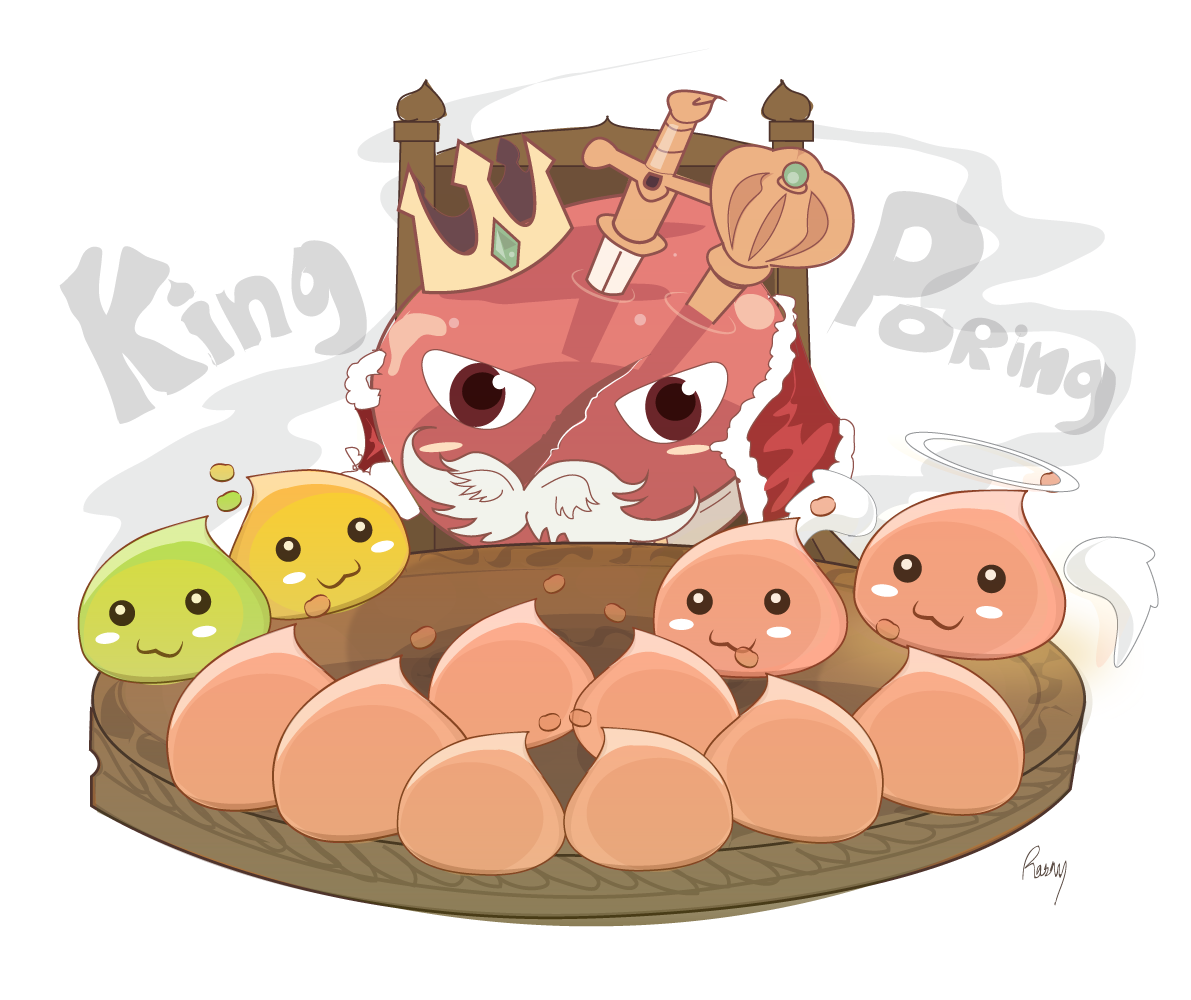
Sir Poring de Monocell
Members4Puntos18Contenido -

MariferDingo
Members3Puntos122Contenido -
Lookerito
Members2Puntos74Contenido -
Honny
Members2Puntos843Contenido



Contenido popular
Showing content with the highest reputation on 02/02/20 en todas las areas
-
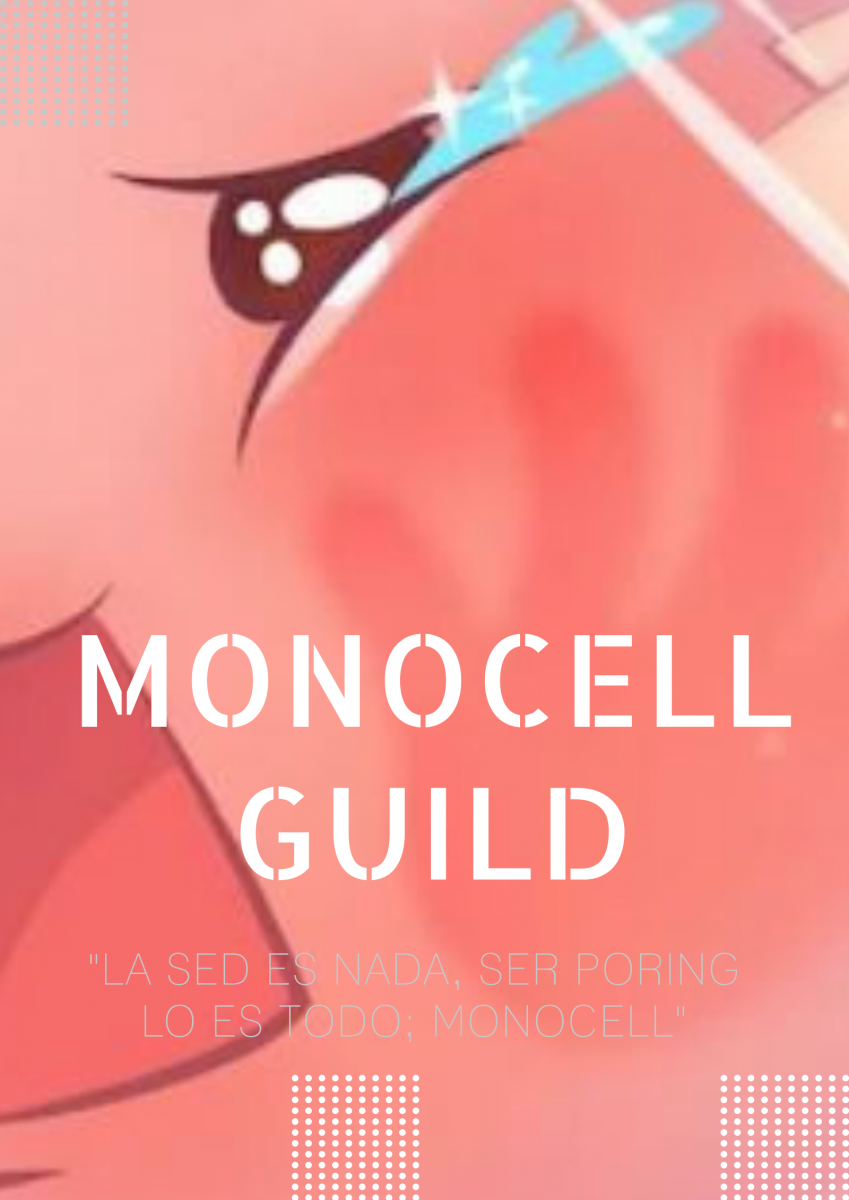
2 puntosBienvenidos todos a la escuela de Porings ~~~ Nuevos , no tan nuevos , ancestros ....... todos son bienvenidos , que requieres???? Buena actitud Up a esta guild tan bonita2 puntos
-
2 puntos
-
1 puntoCuando habilitaran mas costumes y equipo en la tienda de puntos de lealtad tengo esa pequeña inquietud1 punto
-
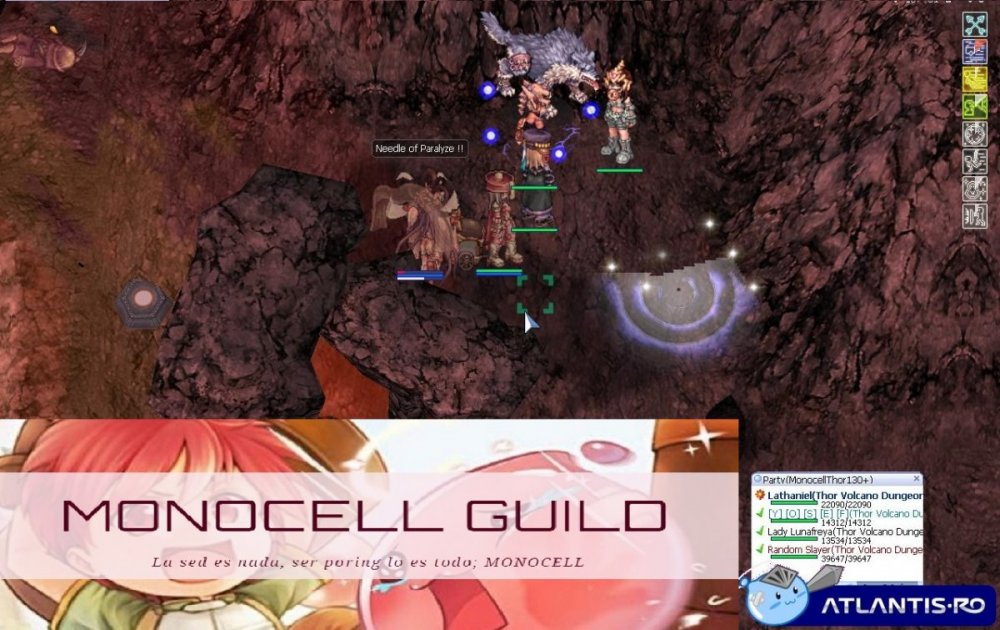
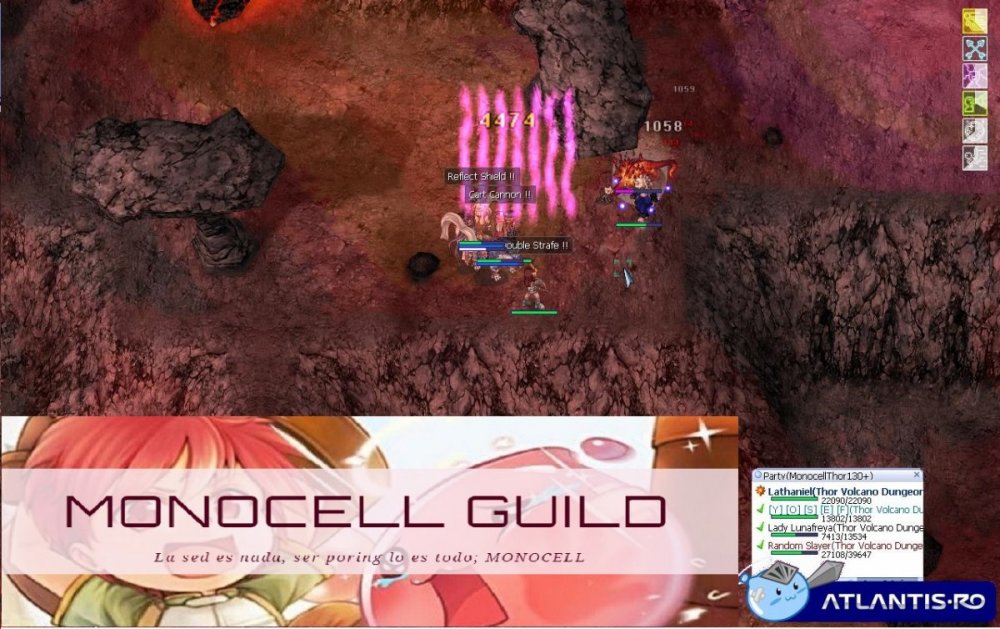
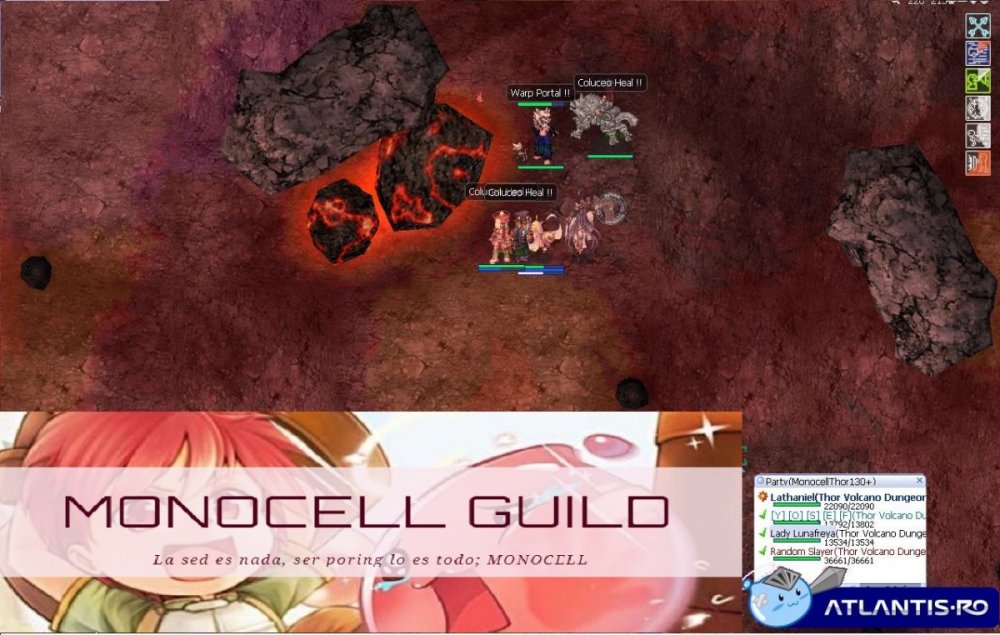
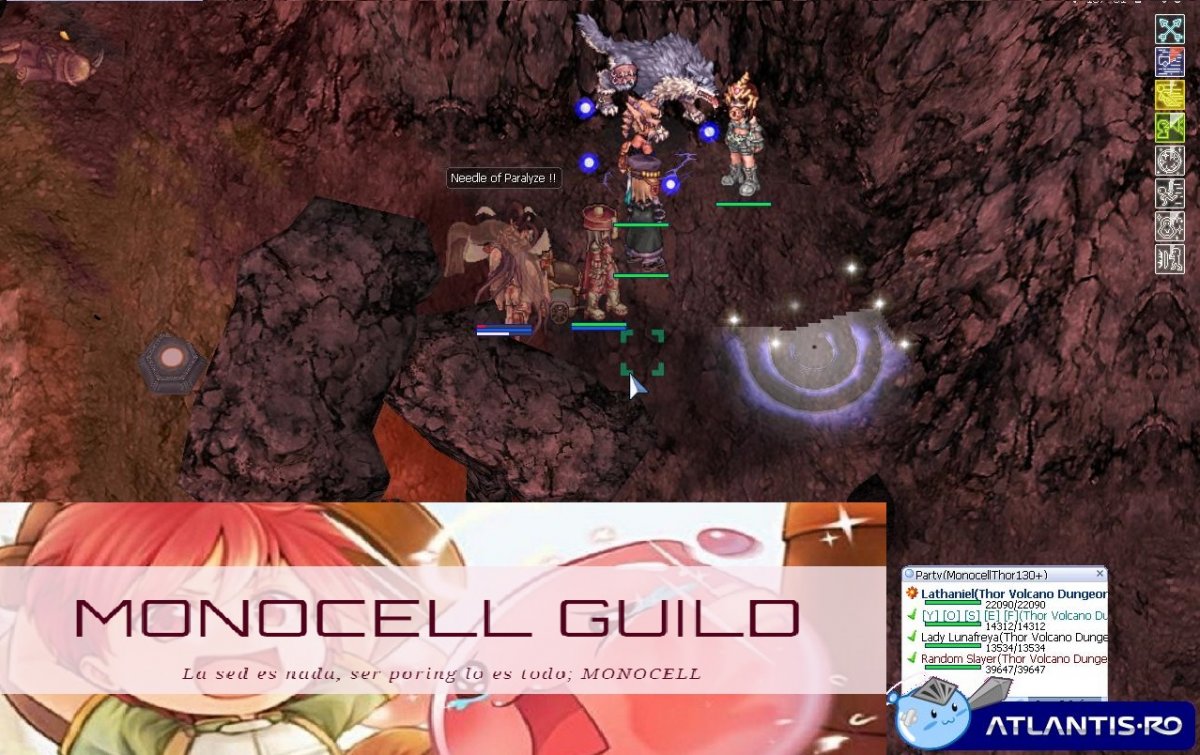
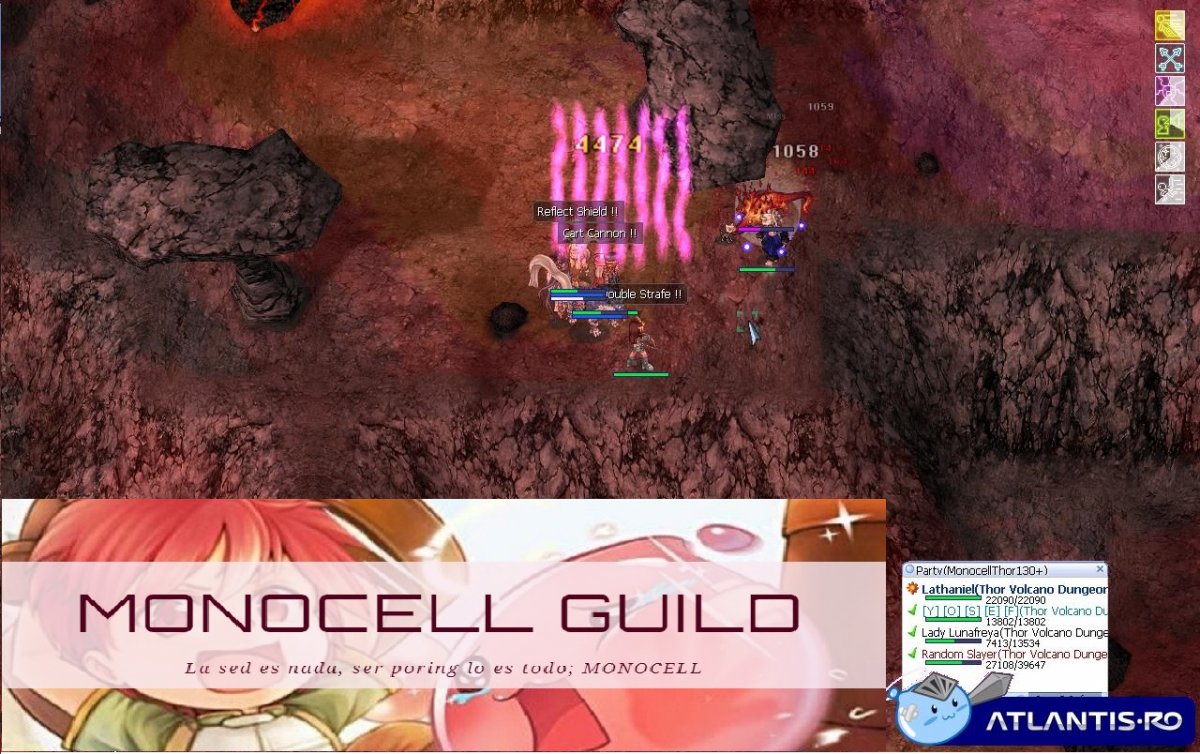
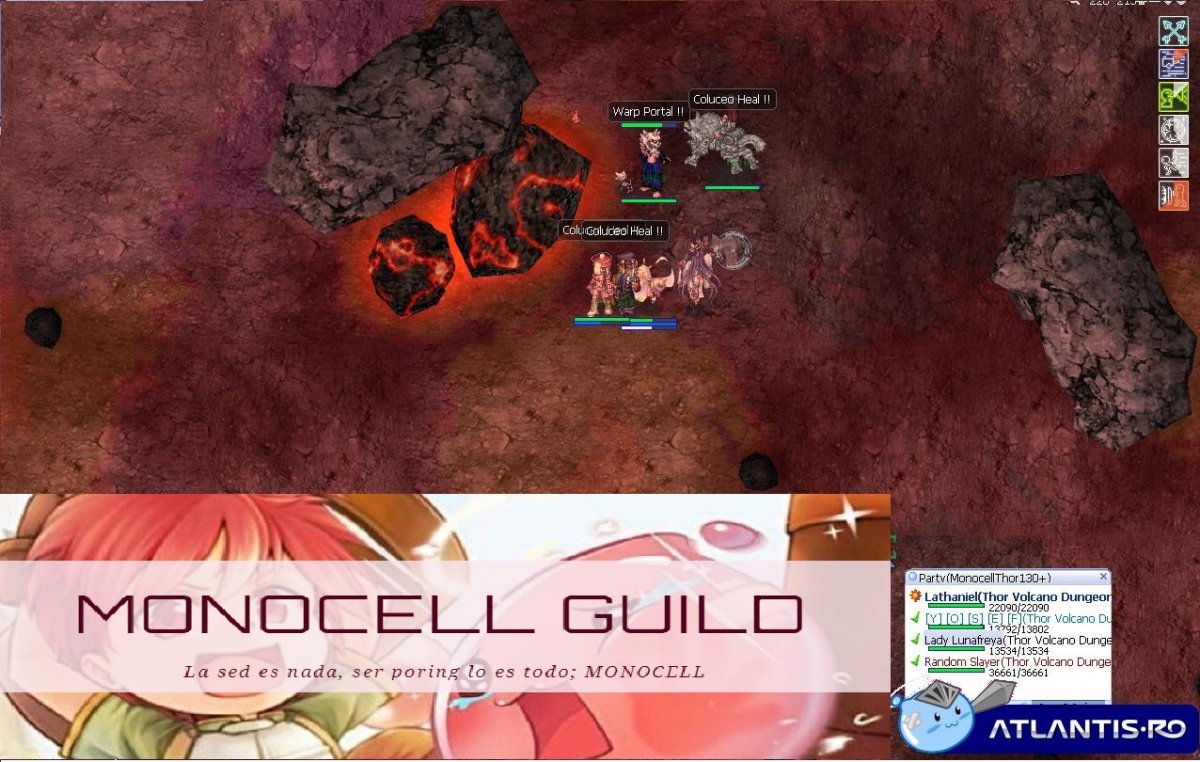
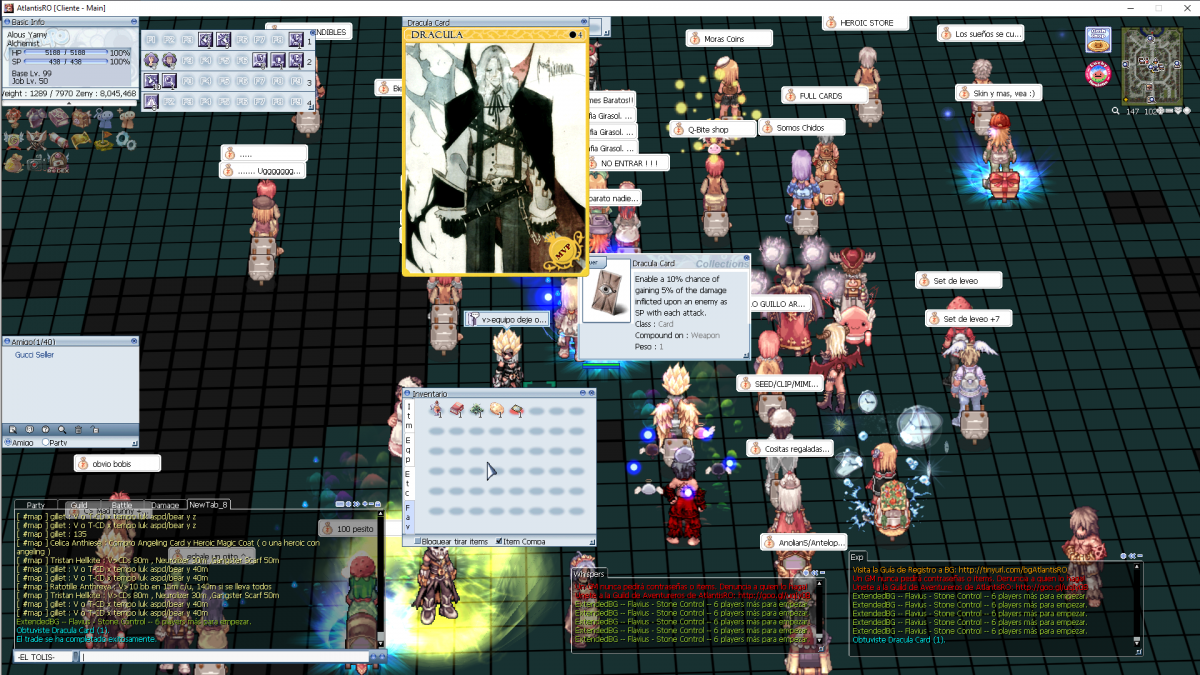
1 puntoGuild Monocell los invita a acompañarnos, vamos donde necesiten y donde gusten. El dia de hoy fuimos a Thor 3 a levear un poco en compañia de @Aldairux @Just - HAPPY@Lathaniel, como siempre la pasamos muy bien y subimos un buen rate de exp. No importa donde vayas cuentas con nosotros para ayudarte y divertirte, lo importante es subir de nivel y sobre todo disfrutar entre amigos con la Guild Monocell. Es nuestro ser hacerte sentir como en casa, rodeado de amigos disfrutando de aRO.
 1 punto
 -
1 puntoÚnete a Monocell!! Y si reto iron man! ?!! Ya hay competidores! Nos encuentras en veins!!!1 punto
-
1 puntoBienvenido a Monocell Guild , ¿Andas buscando guild? ¿Eres nuevo? ¿Estas regresando? ¿Quieres hacer parties pero no hay de tu level o no hay gente on en el horario que conectas? Te invito a formar parte de nuestro clan, MONOCEL GUILD. ~ Players activo 24/7 ~ Gms presentes, con toda la disposición para ayudarte y hacerte sentir parte de nuestro clan ~ Parties diarias a diferentes lugares ~ Contamos con diferentes medios de comunicación tales como: Discord Facebook Group Whatsapp Group Foro Estamos Ubicados en VEINS Puedes encontrarnos allí y si por alguna razón andamos fuera de la ciudad Favor whispeamos a Dreyko x2 (mañana) Gruky (mañana) Honny (desde las 7pm hora server) Lookerito (variable) La Mega (variable) O si encuentras a nuestro NPC Petra Patula (tratamos de tenerlo conectado la mayor parte del día) captadora de players on, déjale un mensaje y tu user de discord si tienes o wsp para ponernos en contacto contigo a la brevedad. También siempre es una buena opción dejarnos un mensaje por aquí o dejarnos un inbox a este personaje con los datos solicitados. Esperamos tenerte pronto con nosotros y, no lo dudes ? NOS ESCUENTRAS EN VEINS1 punto
-
1 puntoEstimado Zetsumei buenas noches, He visto que es de mucha importancia el ranking de servers para así atraer a nuevos players a la comunidad atlantiana... Por lo mismo quería preguntar y sugerir si es posible que se le incentive al player común y silvestre de ir a votar por nuestro server ATLANTIS al ranking a diario con algún tipo de recompensa por su lealtad hacia el server??. Podría ser algo pequeño, no tan ostentoso como potas o talvez un gorrito que tanto les gusta a los players bonito que sea atractivo... o incluso pc para que la gente le agarre el gusto a las pc y quien sabe... empiece por donar para obtener mas...1 punto
-
1 punto
-
1 puntoTendremos en cuenta las sugerencias, es cierto que no se han agregado items nuevos a la tienda en algún tiempo. Estamos analizando opciones para obtener puntos de lealtad mas allá de el login diario y tambien de agregar items nuevos a la tienda. Saludos ?1 punto
-
1 punto
-
1 punto1 punto1 puntoBuenas, si existiera rotación mensual o semestral de los items que se pueden conseguir con los puntos de leatad, es posible que los players logueen más y así habría mayor movimiento en el juego.1 punto1 punto






Account
Navigation
Buscar
Configure browser push notifications
Chrome (Android)
- Tap the lock icon next to the address bar.
- Tap Permissions → Notifications.
- Adjust your preference.
Chrome (Desktop)
- Click the padlock icon in the address bar.
- Select Site settings.
- Find Notifications and adjust your preference.
Safari (iOS 16.4+)
- Ensure the site is installed via Add to Home Screen.
- Open Settings App → Notifications.
- Find your app name and adjust your preference.
Safari (macOS)
- Go to Safari → Preferences.
- Click the Websites tab.
- Select Notifications in the sidebar.
- Find this website and adjust your preference.
Edge (Android)
- Tap the lock icon next to the address bar.
- Tap Permissions.
- Find Notifications and adjust your preference.
Edge (Desktop)
- Click the padlock icon in the address bar.
- Click Permissions for this site.
- Find Notifications and adjust your preference.
Firefox (Android)
- Go to Settings → Site permissions.
- Tap Notifications.
- Find this site in the list and adjust your preference.
Firefox (Desktop)
- Open Firefox Settings.
- Search for Notifications.
- Find this site in the list and adjust your preference.